Your Android's Hidden 'Most Powerful Security Feature' | Why You Must Enable It Now & Setup Guide
Do you know about the hidden 'Lockdown Mode' on Android smartphones? Seji from SejiWork provides an in-depth analysis of how to use this feature to temporarily disable biometrics and thoroughly protect your data with advanced security strategies.

Your Android's Hidden 'Most Powerful Security Feature' | Why You Must Enable It Now & Setup Guide
Hello, I am Seji, the Senior Editor at SejiWork. How secure do you think the smartphone you carry every day truly is? In the modern era, smartphones have become extensions of ourselves, holding everything from financial information and work emails to our most precious private moments. While Google strengthens security with every Android OS update, some of the most powerful defenses remain hidden deep within the system, often overlooked by the average user.
Today, I want to dive deep into a 'hidden security masterstroke' in Android that will help you protect your digital assets like an iron fortress. We are going beyond simply installing an antivirus app; I will reveal the know-how for maximizing security at the system level.
Why Mobile Security Matters Now
In the past, hacking was often about simply paralyzing a system, but today's threats are much more cunning and lethal. From smishing and phishing to physical theft, the threats targeting us are diverse. While the advancement of biometric technology (fingerprint, facial recognition) has brought convenience, it has paradoxically created vulnerabilities where a device could be forcibly unlocked by others.
There is a common prejudice that Android is vulnerable because it is an open platform. In reality, Google has built a powerful security ecosystem that combines hardware and software. However, the key is that users must manually find and turn 'On' these features to fully enjoy their benefits.
The Hidden Secret Weapon: Rediscovering 'Lockdown Mode'
Introduced in Android 9 (Pie), this feature is essentially the essence of Android security. While you normally unlock your phone conveniently with fingerprints or facial recognition, this mode allows you to temporarily disable all biometrics and require only a 'Password (PIN or Pattern)' the moment a threat is sensed.
What is Lockdown Mode?
When you activate Lockdown Mode, the following changes occur:
- Biometrics Disabled: Fingerprint sensors and facial recognition stop working.
- Smart Lock Suspended: Features that keep the phone unlocked in trusted locations or when connected to certain devices are turned off.
- Hidden Notifications: Sensitive notification content on the lock screen is blocked.
This feature serves as a final line of defense to protect your privacy in physically threatening situations (e.g., being forced to provide a fingerprint) or when you need to show your phone to someone else.
How to Set It Up: A 1-Minute Security Upgrade
On most Android phones (including Samsung Galaxy), enabling Lockdown Mode is very simple, though the menu is tucked away.
For Galaxy Users
- Open the Settings app.
- Enter the Lock screen menu.
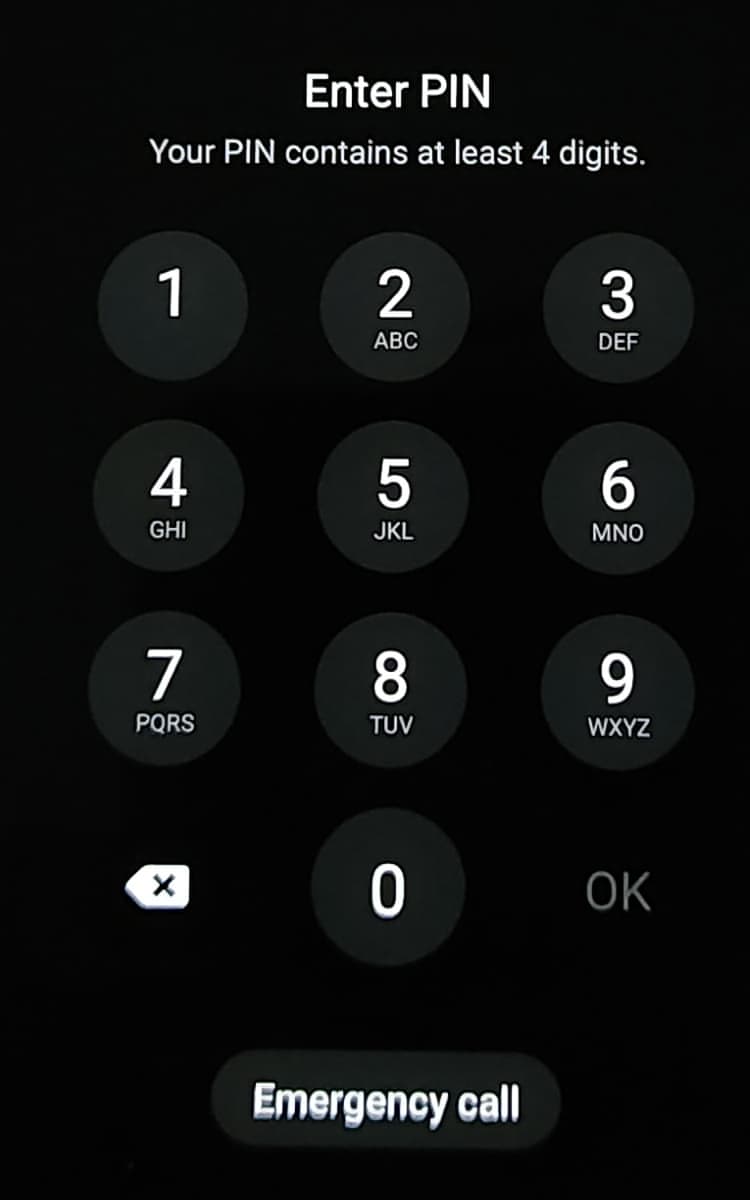
- Select Secure lock settings (requires PIN entry).
- Toggle on 'Show Lockdown option'.
For Pixel and Other Stock Android Users
- Go to Settings > Display > Lock screen.
- Activate the 'Show lockdown option' feature.
Tip: How to Use It
Once configured, try holding down the power button. In addition to the usual 'Power off' and 'Restart' icons, a new icon labeled 'Lockdown' will appear. The moment you tap it, the phone enters a high-security state.
Going Further: The 'Advanced Protection Program'
If you are a journalist, a politician, or a business professional handling sensitive data, you need protection beyond simple settings. Google offers a free service called the 'Advanced Protection Program.'
The Power of Hardware Security Keys
This program requires a physical security key (such as a Titan Security Key) to fundamentally block phishing attacks. Even if a hacker discovers your ID and password, they can never log into your account without the physical key. Additionally, this mode strictly limits the installation of apps from unknown sources and maintains constant, enhanced scanning to prevent data leaks from Google Drive or Gmail.
Synergy of Google Play Protect and Real-Time Scanning
Many people overlook it, but 'Google Play Protect' is the world's most widely used threat detection service. It scans billions of apps daily to monitor for harmful behavior. To go one step further, you should enable the 'Improve harmful app detection' option.
Balancing Security and Convenience
As security strengthens, users inevitably feel some inconvenience. However, the comparison below shows why we must accept a little bit of friction.
Standard Mode vs. Enhanced Security Mode
- Standard Mode: Immediate unlocking with a single fingerprint scan. Notifications are visible on the lock screen for quick checking. Convenient, but high risk of data leakage if the phone is lost.
- Enhanced Security Mode (including Lockdown Mode): Manually elevating security levels based on the situation. Prevents biometric theft. Protects information from prying eyes by hiding notifications. Minimizes damage if a security incident occurs.
Ultimately, security is not an 'all or nothing' game; it requires a strategic approach of adjusting the height of your defensive walls according to the situation.
Editor Seji's Insight: Using Smartphones in the 'Zero Trust' Era
In the past, we distinguished between a 'safe internal network' and a 'dangerous external' one. But now, the principle of 'Zero Trust'—trusting no one—has become the global standard for security. The same applies to smartphone security.
The most powerful security feature is not software code, but the user's 'security awareness.' By simply knowing how to activate Lockdown Mode, you send a strong signal to potential attackers that 'this device cannot be easily breached.'
Furthermore, dedicated security chips like 'Titan M2' embedded in Android devices store your encryption keys in a hardware-isolated space. When you combine these hardware security features with proper software settings, your smartphone truly transforms into a digital vault.
Conclusion
The 'Lockdown Mode' and 'Advanced Protection' settings I introduced today are the most effective security measures you can implement right now. Open your smartphone settings immediately. Protecting your precious information starts not with grand technology, but with the small settings you adjust today.
SejiWork will continue to deliver insights that make your digital life safer and smarter. If you have questions or more security tips you'd like to know, please leave a comment! Thank you.
Best regards,
Seji.